Using an Android phone usually means opening menus, searching through apps, pressing buttons, and swiping through different screens. The Gesture App takes a different approach by allowing you to draw custom gestures and use them to perform actions quickly.
The app, simply listed as Gesture on Google Play, is developed by DogPoo. It lets users draw gestures to launch applications, make calls, take screenshots, control certain device settings, and perform multiple actions with a single gesture.
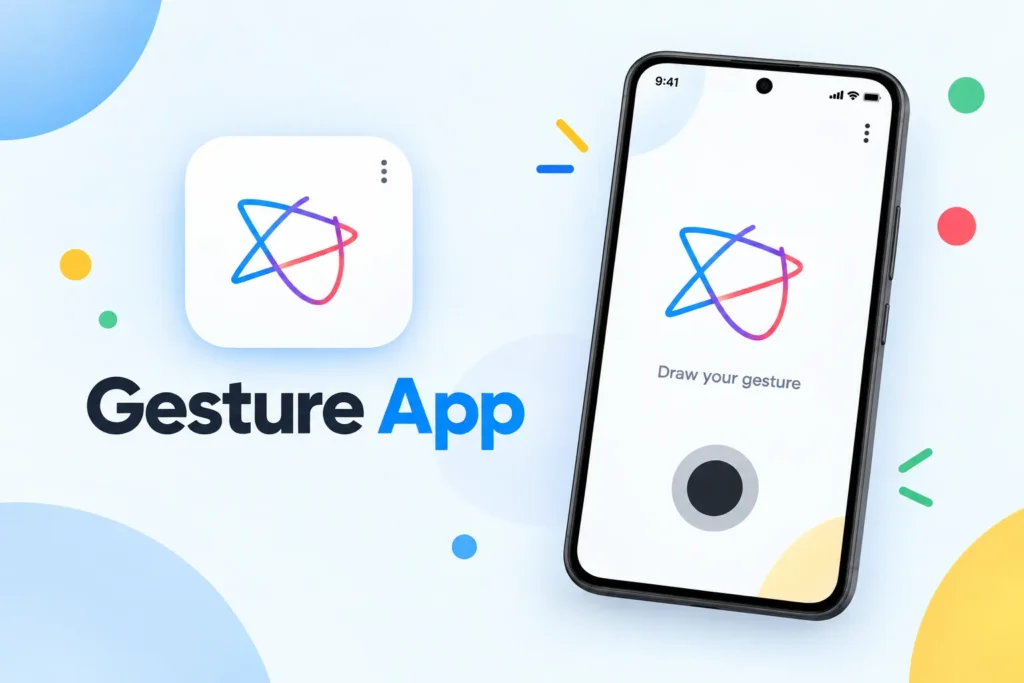
It also offers a floating or side panel so the gesture controls can be accessed from different screens. The current Google Play listing shows 5M+ downloads, around 10,000 reviews, ads, and in-app purchases.
For people who frequently perform the same actions throughout the day, Gesture can provide a more personalized way to interact with Android.
What Is Gesture App?
Gesture is an Android utility app that lets you assign actions to gestures that you draw on the screen.
Instead of searching for an application or navigating through several menus, you can draw a shape or letter that you have previously assigned to a particular function.
For example, you could create:
- A C gesture to open the camera
- An F gesture to open a favorite app
- A gesture to take a screenshot
- A gesture to open recent apps
- A gesture to change a system setting
- A gesture that performs several actions in sequence
The app is designed to make frequently used actions quicker and easier to access.
Draw a Gesture to Open Apps
One of the most useful features is the ability to assign custom gestures to installed applications.
Once an app is linked to a gesture, you can draw that shape instead of searching through the home screen or app drawer.
This can be particularly useful for applications that you open many times each day.
You could assign gestures to:
- Camera
- Calculator
- YouTube
- Browser
- Messages
- Music apps
- Social media apps
- Work applications
The exact gestures are completely up to you, which means you can create a system that fits the way you use your phone.
Perform Phone Actions With Gestures
Gesture is not limited to opening applications.
The current app description also mentions actions such as making calls, taking screenshots, and controlling settings.
This allows your gestures to become shortcuts for everyday phone functions.
For example, instead of opening the settings panel to perform a particular action, you may be able to draw your assigned gesture and trigger it directly.
The available actions depend on the permissions and Android functionality supported by the current version of the app.
Execute Multiple Actions With One Gesture
One of the more interesting features is the ability to combine multiple actions into a single gesture.
This means a gesture does not necessarily have to launch just one application or perform one task.
You can configure a sequence of actions that the app executes after recognizing your gesture.
This can be useful for repetitive workflows.
For example, a single gesture could be configured to perform several predefined actions in succession rather than requiring you to repeat each step manually.
For advanced users, this can turn Gesture into a small automation tool rather than just a launcher shortcut.
Floating Gesture Panel
You do not always want to return to the home screen before using a shortcut.
Gesture addresses this with a floating or side panel that can be accessed while using other applications.
This means you can trigger your configured gesture controls without necessarily leaving the application you are currently using.
For example, while browsing a website, watching a video, or using a social app, you can access the gesture interface and perform your configured action.
This is particularly useful if you have several shortcuts that you want available from anywhere.
Home Button Swipe Feature
The developer has also reintroduced a Home button swipe feature, which can be enabled or disabled from the application’s Labs settings.
This gives users another way to trigger gesture controls through the phone’s navigation area.
The feature may behave differently depending on the Android version and device manufacturer, especially because Android navigation systems vary between phones.
Create Your Own Gesture Shortcuts
The biggest advantage of Gesture is customization.
You are not restricted to a fixed collection of shortcuts chosen by the developer. Instead, you can decide which gestures are connected to which actions.
A useful setup might include:
Single-letter gestures for frequently used applications.
Simple shapes for system actions.
More complex gestures for multi-step automation.
This makes the application adaptable to different types of users.
A person who mainly wants quick access to apps can keep the configuration simple, while a power user can create a much larger collection of custom shortcuts.
Useful for One-Handed Phone Use
Gesture controls can also make large Android phones easier to operate.
Modern smartphones often have tall displays, and some buttons or menus may be difficult to reach with one hand.
A floating gesture panel can reduce the need to repeatedly stretch toward different parts of the screen.
Instead, you can open your gesture interface from a convenient location and draw a shortcut.
For people who frequently use their phone one-handed, this can be a useful addition to the normal Android navigation system.
Screenshot and System Controls
Gesture includes several shortcuts for common system operations.
According to the current app description, users can create gestures for actions such as taking screenshots and controlling device settings.
This can save time when an action normally requires several taps.
Instead of navigating through Android menus, you can assign a gesture that gives you direct access to the function.
The available system controls can depend on the current Android version and permissions enabled on your device.
Accessibility Service
Gesture uses Android’s AccessibilityService API for some of its core functionality. The developer says this is used for user-defined touch and swipe automation, screenshot actions, and system-level functions such as opening Recent Apps and displaying the Power Dialog.
The developer also states that the app does not collect, store, or transmit personal information, passwords, payment details, or user-input data through the Accessibility Service.
Because Accessibility Service is a powerful Android permission, users should still read the permission description carefully before enabling it and understand exactly which features require the access.
Privacy and Data Safety
The current Google Play data-safety section states that the developer declares no data collected and no data shared with third parties, while also indicating that data is encrypted in transit.
This information comes from the developer’s current disclosure on Google Play and can change over time.
As with any application that uses accessibility or overlay features, checking the latest privacy information before installation is a good practice.
How to Use Gesture App
Getting started with Gesture is fairly simple.
After installing the application, you can create shortcuts and assign actions to them.
A typical setup process looks like this:
- Open the Gesture app.
- Create a new gesture.
- Draw the shape or letter you want to use.
- Choose an action for that gesture.
- Select an application or system function when required.
- Save the gesture.
- Open the floating or side gesture panel.
- Draw the gesture and test the action.
You can continue creating additional gestures for your most frequently used tasks.
Example Gesture Setup
A simple setup might look like this:
C → Camera
Draw the letter C to open the camera.
S → Screenshot
Use a simple S-style gesture to capture the screen.
M → Music
Create a gesture for your preferred music application.
W → Wi-Fi
Assign a gesture to a supported system action.
P → Phone
Use a gesture for quickly accessing the dialer or a selected contact.
These are only examples. The real advantage of the app is that you can build your own shortcut system.
Performance and Background Activity
Because Gesture can remain available while you use other applications, Android’s background restrictions can affect its behavior on some phones.
The current listing includes an Accessibility Service specifically for its gesture and automation functionality.
Some users have also reported performance or floating-panel problems after updates, while the developer has responded with fixes and suggestions involving battery optimization and background activity.
This means the experience can vary between Android devices, particularly on phones with aggressive background-management systems.
If gestures stop working, checking battery optimization, background activity, and the app’s required permissions can be useful.
Is Gesture App Free?
Gesture is available as a free Android application, but the current Google Play listing shows ads and in-app purchases.
The amount of functionality available without payment can change as the app is updated.
Check the current application page for the latest information about premium features and pricing.
Who Should Use Gesture?
Gesture can be useful for Android users who perform repetitive tasks and want faster shortcuts.
It may be particularly interesting for:
- Android power users
- People who like gesture controls
- One-handed phone users
- Users with large app libraries
- People who frequently use the same applications
- Users interested in automation
- Anyone looking for alternatives to standard navigation
It may be unnecessary for someone who is already comfortable with normal Android navigation and rarely needs additional shortcuts.
Important Things to Know
Gesture is more powerful than a basic gesture-control app, but its advanced features also mean that setup can take some time.
Remember that:
The app uses Accessibility Service:
Some core actions depend on Android’s accessibility functionality.
Permissions are important:
Some gestures and system actions will not work until the required access is enabled.
Device compatibility can vary:
Android manufacturers handle background apps and accessibility services differently.
The app contains ads:
The current Play Store listing indicates advertising and in-app purchases.
Advanced automation may take experimentation:
It can take some time to create a gesture setup that feels natural.
Final Thoughts
Gesture App is a useful Android utility for anyone who wants to replace repetitive tapping and menu navigation with customizable shortcuts. You can draw gestures to launch apps, make calls, take screenshots, control supported settings, and even execute multiple actions through a single gesture.
The floating and side-panel options make the shortcuts accessible while you are using other applications, while the customizable gesture system lets you create a setup that matches your everyday workflow.
The app is particularly interesting for users who enjoy experimenting with Android controls and want a more personalized way to operate their phones. Just remember that some advanced features rely on Accessibility Service and other permissions, so those settings should be reviewed carefully before enabling them.
For anyone searching for a custom Android gesture app, gesture launcher, shortcut tool, or simple way to control phone functions with drawn gestures, Gesture offers a flexible collection of features to explore.
Related Words: Cesture, Desture, Casture, Gesture, Gasture, Gesture Draw, Guesture, Cesure, Geslure, Gesture 660, Guest, Cesture,