
If you like experimenting with Android customization, you may already have tried launchers, widgets, live wallpapers, and custom icons. Gravity Locket UI Shortcut offers something different: a small floating locket that stays on the screen and reacts to the physical movement of your phone.
The app combines personalization and quick access in an unusual way. You can select a photo, place it inside a custom locket, choose its shape and size, and connect gestures to applications or actions.
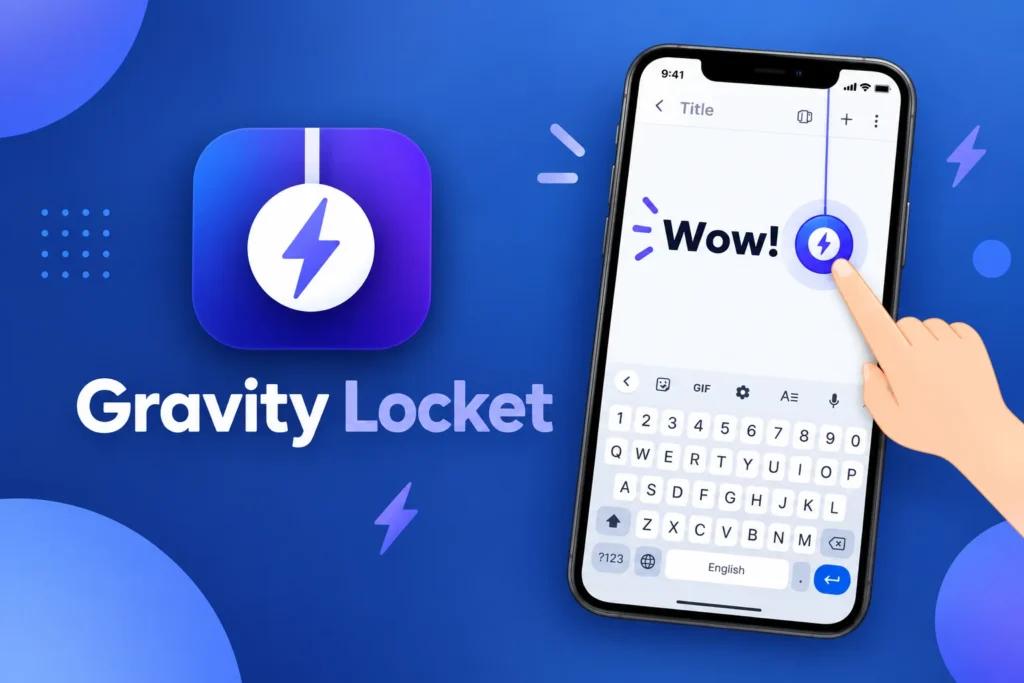
The locket then responds to your phone’s movement using the built-in accelerometer.
Gravity Locket is developed by CFY Apps and is currently available on Google Play in the Personalization category. Its current listing shows ads and in-app purchases, with the app updated on September 1, 2026.
A Different Kind of Android Shortcut
Most shortcuts are static.
You place an app icon on your home screen, tap it, and the application opens. Gravity Locket changes this concept by turning the shortcut itself into an interactive floating object.
The locket can move according to the phone’s orientation and movement.
The app’s current description says it uses accelerometer information so the locket can swing, bounce, and react naturally as you move or tilt the phone.
This creates a playful effect that is noticeably different from standard Android widgets.
Use a Photo Instead of a Normal Icon
The personalization options are one of the main reasons to try Gravity Locket.
You can select an image from your gallery and crop it into one of several shapes, including circles, rounded squares, pentagons, and stars.
This lets you turn almost any suitable image into a visual shortcut.
For example, you could create a locket using:
- Your own photograph
- A favorite pet
- A cartoon character
- A custom logo
- A scenic image
- A personal illustration
This approach gives your phone a more personal appearance while also providing a functional shortcut.
Change the Locket Design
The locket is also adjustable.
You can control how large it appears, change the thread length, and choose where it sits near the top of the display.
These settings are useful because the best placement depends on your phone and how you use it.
If you want a subtle effect, you can make the locket smaller.
If you want it to be an obvious part of your phone’s design, you can increase its size.
Similarly, moving the locket to a different area can help prevent it from covering important buttons or information.
Tap to Open an App
The locket can function as a shortcut.
A single tap can be connected to a frequently used application, giving you a quick way to launch it.
This can be helpful if you regularly switch between the same few applications throughout the day.
Instead of returning to the home screen, finding the correct icon, and opening it, you can use the configured locket shortcut.
It is a small change, but it can make certain workflows more convenient.
Double Tap for Another Shortcut
Gravity Locket also supports additional gesture actions.
The current description lists double tap as a way to launch another configured app or tool.
This gives one visual element multiple functions.
For example, you could use:
Single tap for your browser.
Double tap for your calculator.
Pull down for another action.
The exact actions depend on how you configure the feature.
Pull the Locket Down
Another unusual interaction is the pull-down gesture.
Rather than simply tapping the locket, you can physically drag it downward to trigger a configured action.
This makes the feature feel more interactive than a normal shortcut.
Because the locket is already animated using a physics system, dragging it also fits naturally with the app’s overall design.
Works Above Other Applications
A useful part of Gravity Locket is that the floating control is not limited to the home screen.
The locket can remain available over other applications, giving you a shortcut that can be accessed without first returning to the launcher.
This can be useful when switching between apps.
For example, you could be reading an article and quickly open your notes app through the locket.
You could also be watching content and use the shortcut to launch another tool when needed.
Smart Hiding During Full-Screen Activities
A floating widget would not be useful if it constantly covered videos or games.
Gravity Locket is designed to hide in certain situations.
The developer says the locket pauses its physics engine and hides when the display is turned off, when secure applications are opened, and when the device enters landscape mode, such as during gaming or video playback.
This helps keep the interface cleaner when a floating shortcut would get in the way.
A Physics-Based Widget
The physics element is what gives Gravity Locket most of its personality.
The accelerometer allows the app to respond to movement instead of simply playing a fixed animation.
That means the visual effect changes depending on how you hold and move the phone.
It is an example of using smartphone sensors for customization rather than only for conventional functions such as screen rotation.
Battery Considerations
A continuously running sensor-based animation could potentially use additional resources.
Gravity Locket’s developer says the app is designed to automatically pause its physics engine and hide when the feature is not necessary.
This is a sensible approach for a widget that is intended to remain available throughout the day.
Still, actual battery consumption can vary according to your device, Android version, screen settings, and usage pattern.
If battery use becomes noticeable, reducing the amount of time the widget remains active or disabling it during longer sessions may be worth trying.
Privacy Information
Gravity Locket is also marketed with a privacy-focused approach.
The developer says image data and accelerometer information are processed locally and says personal app-usage and shortcut information are not collected.
At the same time, the Google Play data-safety section currently states that the application may share device or other IDs with third parties and may collect financial information, app activity, and other data.
These two pieces of information refer to different aspects of data handling, so checking the current Play Store disclosure is important before installation.
How to Create Your Own Gravity Locket
Creating a custom setup does not require advanced Android knowledge.
A typical process is:
- Install Gravity Locket.
- Open the application.
- Select a photo from your gallery.
- Choose a locket shape.
- Adjust the size.
- Set the thread length.
- Select its position.
- Assign a single-tap shortcut.
- Add a double-tap or pull-down action.
- Save the configuration and test it.
You can then change the photo or shortcut assignments whenever your needs change.
Good Ideas for Custom Locket Photos
Because the locket can use your own image, there are plenty of possibilities.
You might use your favorite:
Pet photo for a cute personal shortcut.
Character image for an anime-themed setup.
Portrait for a personal home-screen design.
Logo for a more professional appearance.
Artwork for a creative setup.
The best images are usually those that remain recognizable when cropped into the selected locket shape.
Who Is Gravity Locket For?
This app is primarily aimed at people who want something unusual from their Android interface.
It can be interesting for:
- Android customization fans
- Widget enthusiasts
- Users who enjoy animated interfaces
- People who like custom shortcuts
- One-handed phone users
- Users who enjoy sensor-based effects
- Anyone looking for a different alternative to normal icons
It is less likely to appeal to someone who wants the most traditional and distraction-free home screen possible.
Is Gravity Locket Free?
The current Google Play listing shows the application as containing ads and in-app purchases. It is currently listed with 1K+ downloads and an Everyone content rating.
The app is still relatively new, so features and pricing can change as development continues.
Things to Know Before Using the App
Gravity Locket depends on Android permissions and floating-screen functionality, so behavior can vary between manufacturers.
Some phones use aggressive background restrictions, battery optimization, or overlay controls that can affect how floating applications work.
The current application is listed for Android 10 and newer by third-party app catalogs.
It is also worth remembering that this is not a conventional launcher. Your existing home screen, icons, and launcher can remain in place while Gravity Locket simply adds the floating shortcut layer.
Final Thoughts
Gravity Locket: UI Shortcut is a creative Android customization app that turns a simple shortcut into an interactive floating object. Its combination of accelerometer-based movement, custom photos, multiple shapes, adjustable positioning, and gesture shortcuts makes it quite different from standard widgets.
The most interesting part is that the feature is both visual and practical. You can personalize the locket with an image you like while using taps or pull gestures to access applications without repeatedly returning to the home screen.
For people who enjoy unique Android widgets, floating app shortcuts, custom photos, interactive UI effects, and sensor-based phone customization, Gravity Locket provides a fresh way to experiment with the Android interface.