
Sharing your smartphone with friends or family can sometimes expose information you would rather keep private. Someone might open your gallery, read a message, check an email, or access an application while using your unlocked phone.
Picture AppLock: Lock the Apps is an Android utility designed to help prevent this by adding an extra locking step to selected applications.
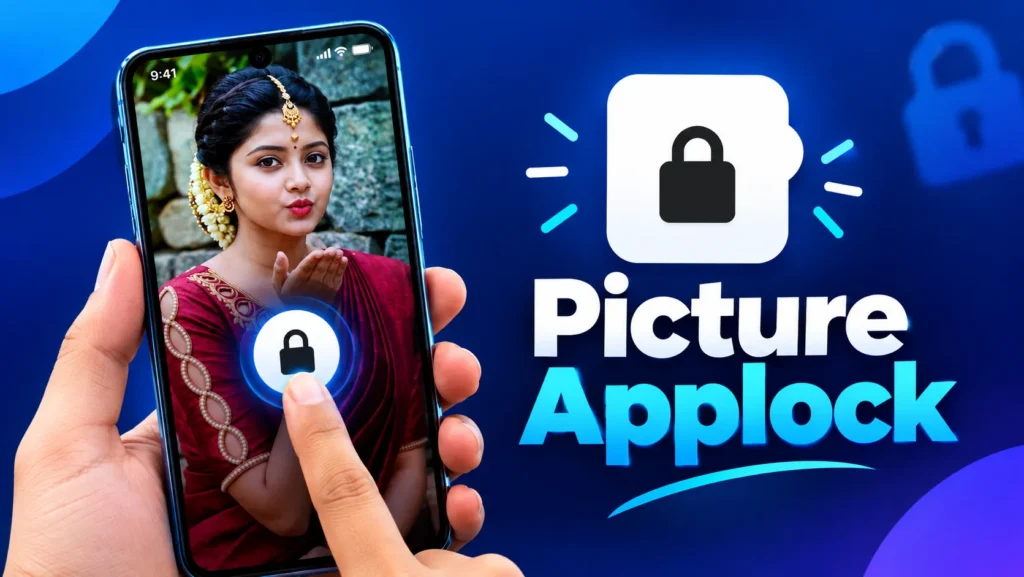
What makes the app different is its photo-based authentication method. Rather than relying exclusively on a number or a conventional pattern, it allows you to select a personal image and define three secret tapping locations.
Whenever you open an app protected by Picture AppLock, you must use the correct picture code before continuing.
Protect Apps Without Changing Your Phone’s Launcher
Picture AppLock is designed to provide app-level protection without requiring you to replace your home screen or switch to a different launcher.
You can continue using your existing Android interface, wallpapers, widgets, and application icons.
The app works as an additional layer between you and the applications you choose to protect.
This is useful if you want to keep your current phone setup but add protection to specific apps.
For example, you might want your messaging and gallery applications protected while leaving your calculator, weather app, and other everyday tools accessible without an additional lock.
The exact behavior depends on the permissions and background settings required by your Android device.
Create a Secret Code Using an Image
The photo-based PIN system is the main feature that separates Picture AppLock from conventional app lockers.
First, select a photograph that you can easily recognize. Next, choose three locations on the image to use as your secret unlocking points.
The locations can be based on familiar details within the picture, such as an object, a landmark, or another visual element.
When you open a protected app, the selected photo appears. Tap the three chosen locations in the correct order to unlock the app.
Because the image remains visible without showing a numerical keypad or connecting lines, the unlocking screen looks different from a traditional PIN or pattern interface.
Nevertheless, the security of the code still depends on keeping the selected points private and choosing locations that are not easy for someone else to guess.
Choose the Right Picture
Choosing an appropriate image can make Picture AppLock easier to use.
Select a photograph with clear visual details that you can recognize quickly. Images with several distinctive objects can be easier to remember than pictures containing large areas of similar colors.
For example, a photograph with a tree, a car, and a building may provide recognizable reference points.
You should avoid choosing obvious locations that another person could easily predict, such as the center of a face or the most prominent object in a familiar picture.
The best image is one that is memorable to you without making the secret sequence obvious.
Also, keep in mind that the photo should remain available and recognizable when displayed at the size used by the app.
Adjustable Security Accuracy
Different screens and users require different levels of tapping precision.
Picture AppLock includes a setting for adjusting the touch-matching radius of the picture password.
A higher-precision setting can make the unlocking points more exact, while a less restrictive setting may be easier to use with one hand.
Consider testing your preferred setting before locking important applications.
If you make the touch area too small, even a slight difference in your tapping position might prevent successful authentication. If you make it too large, the password may become easier to guess through approximate taps.
A balanced setting can provide a better combination of convenience and privacy.
Lock Apps Immediately or After a Delay
Picture AppLock also gives you control over how quickly protected apps lock again.
You can choose immediate relocking or configure a short grace period after leaving an application.
This is helpful because different applications have different privacy requirements.
For example, you may prefer immediate locking for a banking application, while a short delay may be more comfortable when using messaging apps throughout the day.
A longer grace period makes repeated app switching easier, but anyone who gets access to your phone during that period may be able to reopen the protected application without entering the picture code.
Choose the shortest delay that comfortably fits your routine.
Biometric Recovery for Forgotten Codes
Picture-based passwords can be memorable, but you might occasionally forget the selected locations.
Picture AppLock supports biometric recovery using your phone’s native fingerprint or face authentication where available.
This gives you a way to recover access without permanently losing access simply because you cannot remember the picture code.
Check that biometric recovery is configured and working before relying on it.
You should also keep your phone’s own screen lock secure, because device-level authentication remains important even when individual applications have their own protection.
Keep the Lock Running in the Background
An app locker needs to remain active to detect when a protected application is opened.
On some Android phones, battery optimization may restrict background activity. This can affect whether the app-locking screen appears consistently.
Picture AppLock’s developer has advised users experiencing automatic shutdown problems to review the app’s battery-optimization settings.
If the lock does not appear reliably, open Picture AppLock and check whether it displays any setup warnings. Follow the instructions for the required permissions and background operation.
The exact settings may differ between Samsung, Xiaomi, Motorola, OnePlus, and other Android devices.
After changing the settings, test the lock by closing and reopening a protected app several times.
Does Picture AppLock Protect Personal Data?
Picture AppLock is intended to restrict casual access to selected applications, but it is important to understand what an app locker can and cannot do.
The application adds a locking screen to apps you select. It does not encrypt every file on your phone or replace the security mechanisms built into Android.
For stronger overall protection, use a secure phone passcode, keep Android updated, and protect your Google or other account credentials.
You should also review the app’s permissions and privacy information.
The developer says selected photos and picture-code information are processed locally. However, Google Play’s data-safety disclosure indicates that the app may share device identifiers with third parties and collect certain information categories. Review the latest disclosure for the version you install.
Avoid using an app locker as your only defence for highly sensitive financial or personal information.
How to Protect Your First App
If you are new to Picture AppLock, start by protecting one application rather than locking everything at once.
- Install and open Picture AppLock.
- Select a suitable image.
- Set your three secret tapping locations.
- Confirm the code works correctly.
- Choose one app to protect.
- Set your preferred automatic locking behavior.
- Configure biometric recovery if available.
- Test the lock with the phone both locked and unlocked.
- Review the app’s permissions and background settings.
Once everything works as expected, you can add further applications to the protected list.
Is Picture AppLock Suitable for Everyone?
Picture AppLock is especially interesting for people who want a less conventional way to unlock applications.
It may suit Android users who want to protect messaging apps, photos, email, and other personal applications from casual access.
However, if you prefer the simplest possible locking method, a conventional PIN or your phone manufacturer’s built-in app-lock feature may be more convenient.
Picture AppLock also contains advertisements and in-app purchases, so consider whether its features and interface suit your preferences before committing to regular use.
Final Thoughts
Picture AppLock: Lock the Apps offers a personalized approach to Android app protection. By allowing you to use a photo and three secret touch points as your unlocking code, it provides an alternative to standard numerical PINs and pattern locks.
Its adjustable touch accuracy, configurable relocking timer, biometric recovery, and uninstall-protection feature provide additional control over the locking experience.
The key is to configure it carefully. Choose a suitable image, keep your secret points private, test biometric recovery, and make sure the app continues to operate correctly in the background.
If you are looking for a photo PIN app, Android privacy app, or picture-based app locker, Picture AppLock offers an unusual option for adding an extra layer of protection to selected apps.