
Have you forgotten the pattern lock on your Android phone? It can be frustrating when you need to access your photos, contacts, messages, or important apps but cannot remember the correct pattern. Whether you use a Samsung, Motorola, Redmi, Realme, Vivo, Oppo, or another Android phone, losing access to your device can interrupt your daily routine.
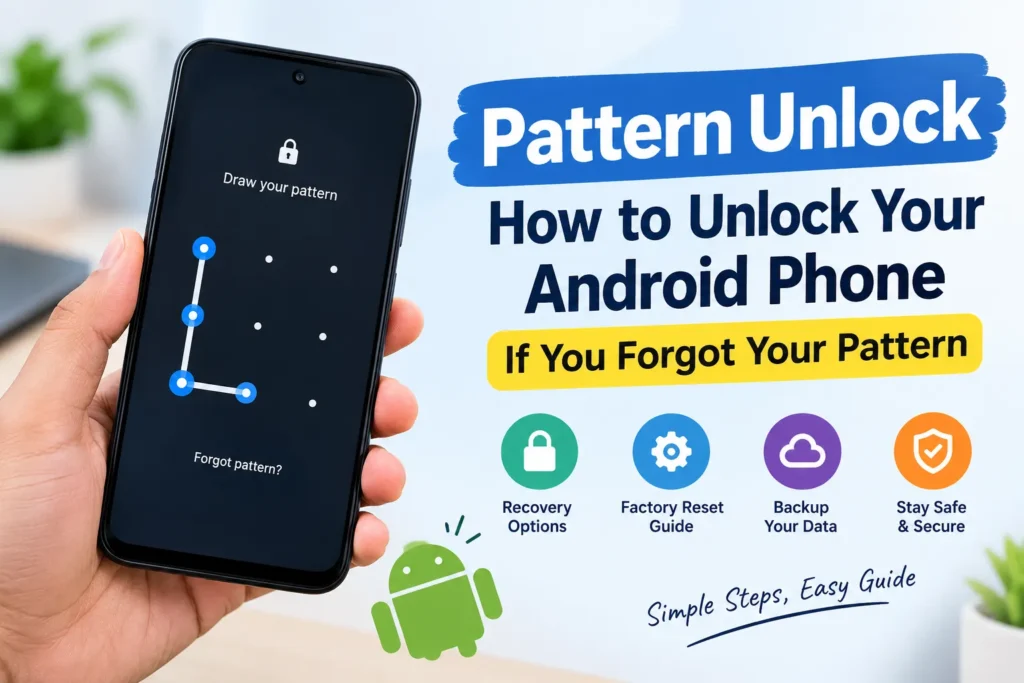
The good news is that there are several legitimate recovery options you can try. The available methods depend on your phone model, Android version, security settings, and whether you recently changed your screen lock.
In this guide, we will explain what pattern unlock means, how to recover access to your own Android phone, whether you can unlock it without losing data, and how to protect your files before attempting a reset.
What Is Pattern Unlock?
Pattern unlock is a screen security feature available on many Android smartphones. Instead of entering a PIN or password, you draw a pattern by connecting dots displayed on your screen in a particular order.
When you first set up a pattern lock, your phone asks you to create and confirm a pattern. You must then draw the same pattern whenever you want to unlock the device, unless you use another supported authentication method.
Pattern locks are convenient because they allow you to access your phone quickly. However, they can become a problem if you forget the pattern, accidentally change it, or leave your phone unused for a long time.
Modern Android devices protect user information with several security measures. For this reason, there is no universal pattern unlock method that works on every Android phone. The safest approach is to use the recovery features provided by Android or your phone manufacturer.
How to Unlock Your Android Phone If You Forgot the Pattern
If you cannot remember your screen pattern, do not immediately reset your phone. First, check the recovery options available for your particular device.
1. Check Whether Your Phone Supports Previous Screen Lock Recovery
If you recently changed your screen lock, your phone may offer a way to use your previous lock method.
For example, certain Samsung Galaxy devices running One UI 6.1 or later support a previous screen lock recovery feature. When you change your PIN, password, or pattern, the device may retain the previous lock for up to 72 hours.
If you forget the new lock during that period, look for a Forgot PIN/Password/Pattern option on the lock screen. If your device supports this feature, follow the on-screen instructions to verify your previous screen lock and create a new one.
Keep in mind that this feature is not available on every Samsung phone or Android device. It generally applies to supported devices after a recent screen lock change.
If you did not recently change your pattern, move on to the next recovery option.
2. Look for the Forgot Pattern Option on Older Android Phones
Some older Android smartphones provide a Forgot pattern option after several unsuccessful unlocking attempts.
On supported devices running Android 4.4 or earlier, you may be able to select this option and verify the Google Account previously added to the phone. After successful verification, the device may allow you to reset the screen lock.
However, this recovery method is not generally available on modern Android smartphones. Repeatedly entering incorrect patterns on a newer phone will not necessarily display a Google Account recovery option.
If you do not see this option on your device, avoid continuing with random pattern attempts. Check your phone manufacturer’s official support instructions instead.
3. Use Your Phone Manufacturer’s Official Recovery Guidance
Android phone manufacturers may provide different instructions for recovering access to a locked device.
For example, Samsung, Motorola, Xiaomi, Redmi, Oppo, Vivo, and other brands may use different recovery menus and device-specific procedures.
Visit the official support website for your phone manufacturer and search for your exact model along with terms such as forgotten screen lock or factory reset.
Before following any instructions, check whether the process will erase your data. Some recovery procedures are intended to reset the device rather than recover the existing pattern.
If your phone contains important photos, documents, or other files that are not backed up, contact an authorised service centre before proceeding. A service centre may be able to explain your available options, although it cannot guarantee that the data can be recovered without unlocking the device.
How to Factory Reset a Phone When You Forgot the Pattern
If your phone does not support a recovery option that preserves your data, a factory reset may be necessary to regain access.
A factory reset returns the phone to its initial setup state by removing local user data and settings. It does not simply remove the pattern while keeping everything else unchanged.
Before proceeding, make sure you understand the following precautions.
A factory reset can erase your photos, downloaded files, installed apps, messages, and other data stored locally on your phone. Data already backed up to a supported cloud service may still be available afterward, but unbacked-up information may be permanently lost.
You should also make sure you know the Google Account previously associated with your device. Android’s Factory Reset Protection may require you to verify that account after resetting the phone.
Google provides official guidance for resetting a locked Android device here:
The exact reset procedure varies by phone model. Follow the instructions provided for your particular device rather than relying on generic button combinations found online.
If you are unsure about the procedure, ask the manufacturer’s authorised support team for assistance.
Can You Unlock a Pattern Without Losing Data?
This is one of the most common questions people ask after forgetting their Android screen lock.
The answer depends on your device and the recovery features available.
If your phone supports previous screen lock recovery, you may be able to regain access without performing a factory reset. Some older Android devices also support account-based pattern recovery.
However, modern Android phones generally do not provide a universal method to bypass a forgotten screen lock while preserving all locally stored information.
Your phone’s security system is designed to prevent unauthorised access to personal information. As a result, a website or application promising to unlock every Android phone without a password, data loss, or verification should be treated cautiously.
Before resetting your device, check whether your photos and contacts are already backed up. You may also want to check whether documents are stored in Google Drive or another cloud storage service.
Remember that a backup can help you restore information after resetting your phone, but it cannot guarantee recovery of every file, application, or application-specific setting.
How to Check Your Backups Before Resetting Your Phone
Although you may not be able to access the locked phone, some of your information might already be available through online services.
Checking these services before resetting your device can help you understand what you may be able to restore.
Check Google Photos
If you previously enabled backup in Google Photos, some or all of your pictures and videos may already be stored in your Google Account.
You can check Google Photos from another device or a computer by signing in with the same Google Account.
Look through your backed-up photos and videos to confirm whether the files you need are available. Do not assume that every picture on your phone has been uploaded, because backup settings and available storage can affect what is saved.
Check Google Contacts
If your contacts were synchronised with your Google Account, they may be available even when your phone is locked.
Open Google Contacts on another device and sign in with the account you used on your smartphone. Check whether your saved contacts appear.
Contacts stored only on the phone’s internal storage or on a SIM card may require different recovery steps.
Check Google Drive and Other Cloud Services
You may have saved documents, PDFs, downloads, or other important files to Google Drive or another cloud storage service.
Sign in to the relevant service from a computer or another phone and check which files are available.
You can also review whether other applications have their own backup systems. For example, some messaging apps provide separate backup and restore options.
Checking your backups before a factory reset helps you make an informed decision and reduces the risk of losing information that matters to you.
Why You Should Avoid Unverified Pattern Unlock Apps
Searching online for pattern unlock solutions may lead you to applications or websites claiming to remove any Android screen lock instantly.
Be careful before using these services.
Some tools may not support your phone model, while others may require a factory reset anyway. Unknown applications can also request unnecessary permissions or expose your personal information to security risks.
Never share your Google Account password, verification codes, or other sensitive information with an untrusted unlocking service.
Avoid downloading unknown files or connecting your phone to unfamiliar computers just because a website promises a quick solution.
For the safest results, use Android’s official guidance, your manufacturer’s support resources, or an authorised service centre. If a tool claims to recover your data, check its reputation and understand exactly what it will do before granting access.
How to Create a Strong Pattern That Is Easier to Remember
Once you regain access to your phone, take a few minutes to review your screen lock settings. The right security habits can reduce the chances of getting locked out again.
Choose a Pattern You Can Remember
Select a pattern that feels natural to you but is not an obvious shape. Avoid extremely simple patterns that another person could easily guess.
At the same time, do not create a complicated pattern that you are likely to forget. A security method is useful only when you can use it consistently.
Consider Using a PIN or Password
If you frequently forget patterns, consider switching to a PIN or password.
A PIN can be convenient for everyday use, while a longer password may offer additional protection when it is strong and unique. The best choice depends on your device, security needs, and personal preferences.
You can also use fingerprint or face unlock if your phone supports these features. However, biometric authentication does not replace your primary screen lock. Your phone may still require the pattern, PIN, or password after a restart or under certain security conditions.
Keep Your Google Account Accessible
Make sure you know which Google Account is associated with your phone and can sign in to it from another device.
Keep your recovery email address and phone number up to date. If you forget your Google Account password, use Google’s official account recovery process before resetting your phone.
Back Up Important Files Regularly
Do not wait until your phone becomes inaccessible to think about backups.
Review your Google backup settings, Google Photos backup status, contacts synchronisation, and any other cloud services you use.
For particularly important documents or photos, consider keeping an additional copy in a secure location. Regular backups can make a significant difference if your phone is lost, damaged, reset, or replaced.
Pattern Studio
Generate Your Pattern
Enter your mobile number and select your phone brand to generate a random pattern.
Your Pattern
Your randomly generated pattern is ready.
How can I unlock my Android phone if I forgot my pattern?
Start by checking whether your device supports previous screen lock recovery. Older Android devices may offer a Forgot pattern option. If no supported recovery method is available, a factory reset may be required.
Can I unlock my phone without a factory reset?
Sometimes. Certain devices provide recovery features that let you regain access without erasing your data. However, there is no universal method for unlocking every modern Android phone without its screen lock.
Will a factory reset delete my photos and contacts?
A factory reset erases local data on the device. Photos and contacts already synchronised with cloud services may remain available, but files that were never backed up may be lost.
Can my Google Account remove my forgotten pattern?
Google Account-based pattern recovery is supported on Android 4.4 and earlier through the Forgot pattern option. Modern Android phones generally do not support this older recovery process.
What happens after resetting a locked Android phone?
Your phone will usually restart and display the initial setup process. You may need to connect to Wi-Fi, verify a Google Account previously associated with the device, and restore available backups.
Can I unlock a Motorola, Samsung, Redmi, or Vivo phone using the same method?
Not necessarily. Recovery options and reset instructions vary by model, manufacturer, and software version. Always check the official instructions for your specific phone.
What should I do if I forgot both my pattern and Google Account password?
First, recover your Google Account through Google's official account recovery process. This is especially important because a reset may trigger account verification when you set up your phone again.
Final Words
Forgetting your pattern lock can be stressful, especially when your phone contains important personal information. However, a forgotten pattern does not necessarily mean that your device is permanently unusable.
Start with recovery options that may preserve your data, such as supported previous screen lock recovery. If those options are unavailable, check your backups and review your manufacturer's official instructions before considering a factory reset.
Most importantly, avoid unverified unlocking tools and do not reset your phone until you understand the potential data loss. Keeping your Google Account accessible, choosing a memorable screen lock, and backing up important files regularly can help you avoid similar problems in the future.
Disclaimer
This tool is provided for entertainment purposes only. It generates random mobile unlock patterns for fun and demonstration purposes. The patterns generated by this form are random and are not the actual unlock patterns of any mobile phone.
We do not access, retrieve, identify, or provide the original screen lock pattern of any device. Entering your mobile number or selecting your phone brand does not help us discover or unlock your device's actual pattern.
This tool cannot unlock, bypass, or recover a forgotten phone lock. If you have forgotten your phone's pattern, please use the official recovery options provided by your device manufacturer.
By using this tool, you acknowledge that the generated patterns are random and are not guaranteed to work on any device.